2026 / Tools

Mocap Data
Manager.

A desktop tool for our mocap lab. It batch-processes Vicon takes through Shogun Post and Maya, lets me review them in one place, and hands off clean FBX files.

Screen recording of a real session. Mistakes are cut, waits are sped up, and performer names and file paths are blurred.

01 / Background

Before and after

I had already written a Shogun Post export script and a Maya cleanup script. Everything between them was still manual: start each one, find the output, open FBXs to check which performer and take they were, then copy files into project folders. The Manager handles that part.

Capture, tracking cleanup in Vicon, and the final call on whether a take is good enough still happen by hand.

StepBeforeWith the Manager
ProcessingStart Post export and Maya cleanup separately and find the output in between.ToolAdd MCP files and pick settings once; one queue runs Post export β†’ Maya cleanup β†’ output check.
Multiple performersWork out from filenames which performers belong to which take.ToolFiles are grouped by take and share one destination.
ReviewOpen each FBX and set the scene up again.ManualStep through takes in one Maya window with next/previous and playback speed. Approving a take is still my call.
DeliveryPick the right outputs, then copy, zip, and archive.ToolAssign a project, then verified copy, FBX-only ZIP, and archive.
RerunsKeep track of what already ran.ToolQueue state is saved, unchanged takes are skipped, and failed ones can be retried.

02 / Interface

Take Browser and delivery panel

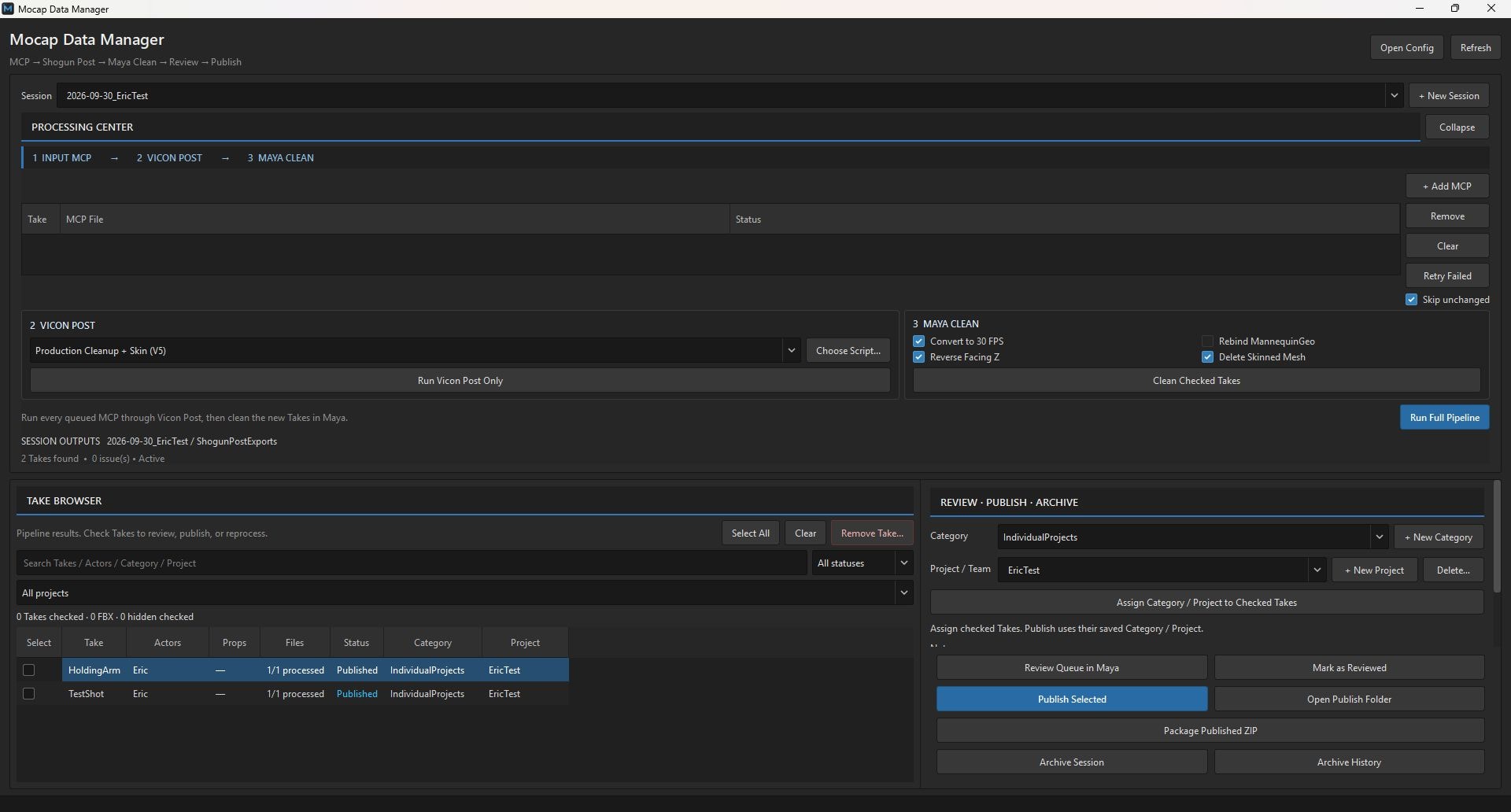
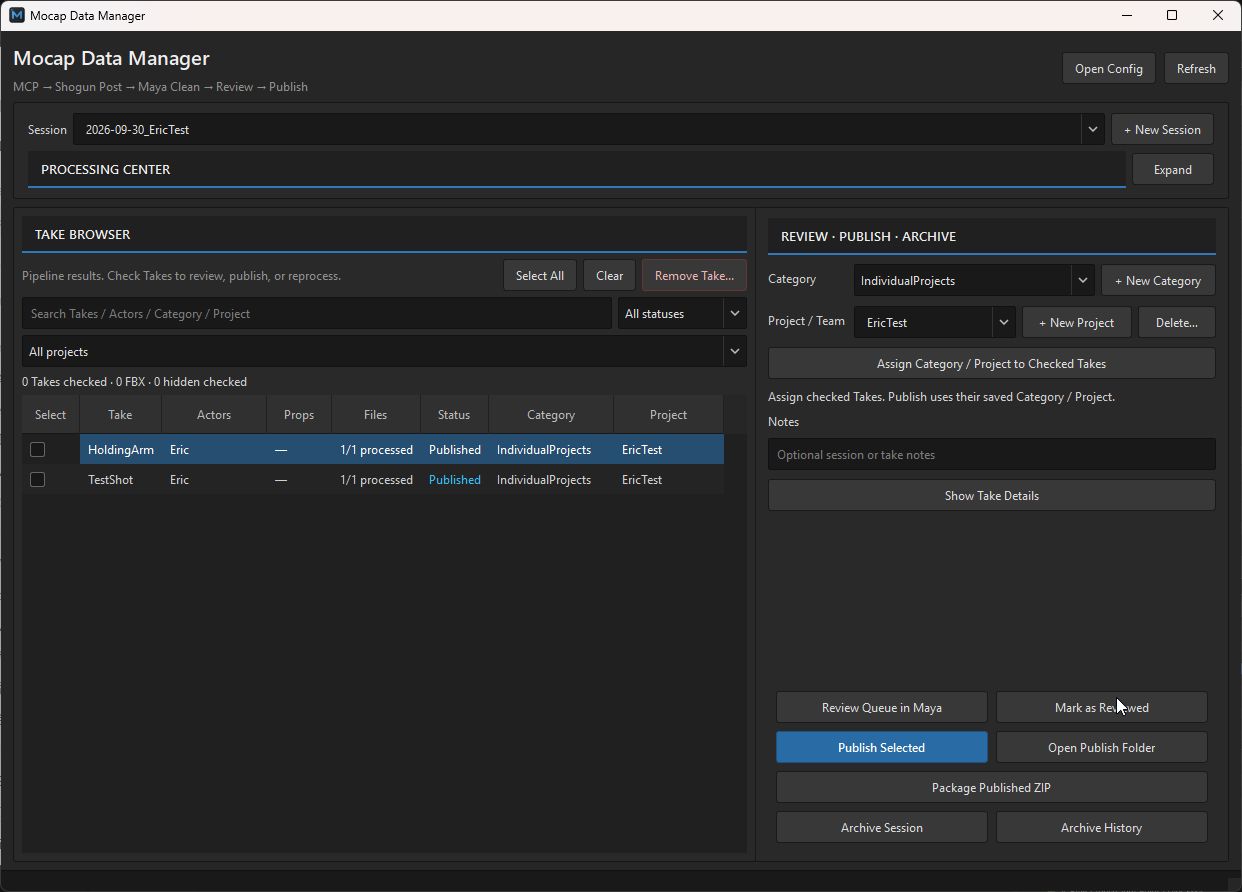
Each row is one recording, with its performers, props, status, and destination together. Delivery happens from here.

Actual Mocap Data Manager interface with processing controls and Take Browser
The Manager during a session: processing on top, takes and delivery below.Open full-size screenshot β†—
Take Browser showing category, project, status, publishing and archive controls
Take Browser and delivery panel. Both takes in this capture have one performer; multi-performer takes are grouped the same way.
  1. 01

    Grouped by take

    Performer and prop files stay together.

  2. 02

    Status at a glance

    Processed, reviewed, published.

  3. 03

    One destination per take

    Category and project apply to every performer in it.

03 / Workflow

A typical session

Five steps from MCP files to delivery.

  1. 01

    Queue

    Add the session's MCP files and choose the Post and Maya settings.

    MCP queue
  2. 02

    Process

    Run the batch, check each take's status, and retry anything that failed.

    Shogun Post β†’ Maya
  3. 03

    Assign

    Pick a category and project for each take.

    Category / Project
  4. 04

    Review

    Play each take in Maya, change the speed, step to the next one, and mark it reviewed.

    Review Queue in Maya
  5. 05

    Publish

    Copy the reviewed files with verification, build the FBX ZIP, and archive the session.

    Publish / ZIP / Archive

04 / Problems

Issues found during testing

All three came up while testing on actual capture sessions.

01

Two performers, same bone names

Problem

Importing two performers into one Maya scene for review caused joint and animation name clashes.

Fix

Each performer is imported into a temporary review namespace. Delivered skeletons keep their clean names, and the output check confirms joint visibility.

02

Which export is the latest?

Problem

Post exports, Maya outputs, and published copies live in different folders. Reprocessing a take upstream could leave an old file downstream.

Fix

Each run gets its own batch folder, takes are tracked by state and content fingerprint, and publishing verifies every copy.

03

Reloading files and save prompts

Problem

Opening FBXs one at a time broke up review, and temporary review scenes kept asking to be saved.

Fix

Review stays in one Maya window with next/previous and playback speed, and the tool treats review scenes differently from scenes you are actually editing.